How to Build a Landing Page in systeme.io (Tested End to End)
You want a page that does one job: turn a visitor into an email subscriber. Not a brand manifesto, not a brochure — a simple page with a headline, an offer, and a form.
I built exactly that in a real systeme.io account in October 2026: a two-page funnel giving away a 30-point email automation checklist. It's live, it has passed pressure tests end to end, and I screenshotted everything. Along the way I learned that the most common advice about what happens *after* someone submits your form — the "connect an automation rule" step in the newest tutorials — silently fails when double opt-in is on. This guide builds the page, wires the form the compliant way, and shows you the delivery pattern that actually works, with proof.
Who this is for
- You have (or will create) a free systeme.io account and want a working opt-in page this week.
- You're giving away a freebie (PDF, checklist, template) and want the page, the form, and the delivery to all work together.
- You care about consent-based email: double opt-in, a real consent checkbox, honest unsubscribe handling.
Who should skip this
- You need a full sales page with order bumps, upsells, and payment integration — that's a sales funnel, a different build.
- You want to skip double opt-in. I won't help you do that; the form wiring below keeps it on.
- You're on MailerLite, Kit, or another builder — the concepts transfer, but every click here is systeme.io-specific.
The problem
Most systeme.io landing page tutorials stop where the hard part starts. They show you the page builder — templates, drag-and-drop, headline tips — and then hand the actual subscriber experience off to one automation step: create a rule, trigger "funnel step form subscribed," action "subscribe to campaign," and trust that the email reaches each lead. The newest independent tutorial (Medium, Feb 2026) puts it as step 11 and claims it "guarantees that your emails are automatically received by each lead."
In our October 2026 tests on the free plan, that step delivers nothing. I ran three confirmed signups through two automation designs — a direct "send email" action and the "subscribe to campaign" action that tutorial recommends. All three contacts confirmed via the double opt-in link. Zero delivery emails arrived — not after 30 minutes, not after 12 hours. The rule history stayed empty; the campaign showed 0 contacts, 0 emails. The trigger fires while the contact is unconfirmed, the action is suppressed, and nothing re-fires after confirmation.
So a page built by following those tutorials collects subscribers who never get the freebie. This guide builds the page *and* the working delivery pattern: redirect to a thank-you page with a download button.
If the automation side interests you in more depth, it's covered step by step in How to Set Up Email Automation in systeme.io (Tested End to End), and the double opt-in mechanics are isolated in How to Turn On Double Opt-In in systeme.io.
The tested setup
Step 1 — Create the funnel and pick a template
In systeme.io, go to Funnels and click Create (top right). In the "Create funnel" dialog, name your funnel and click Create again. Then pick a template — I selected the Elite Legal Advocacy template. Yes, really — the template's copy had nothing to do with my topic. What mattered was the layout: a hero section with an image, headline, and opt-in form, plus a second page I could turn into a thank-you page. The gallery is a flat visual list of templates; pick for structure, not copy, because you'll strip nearly all the wording anyway.
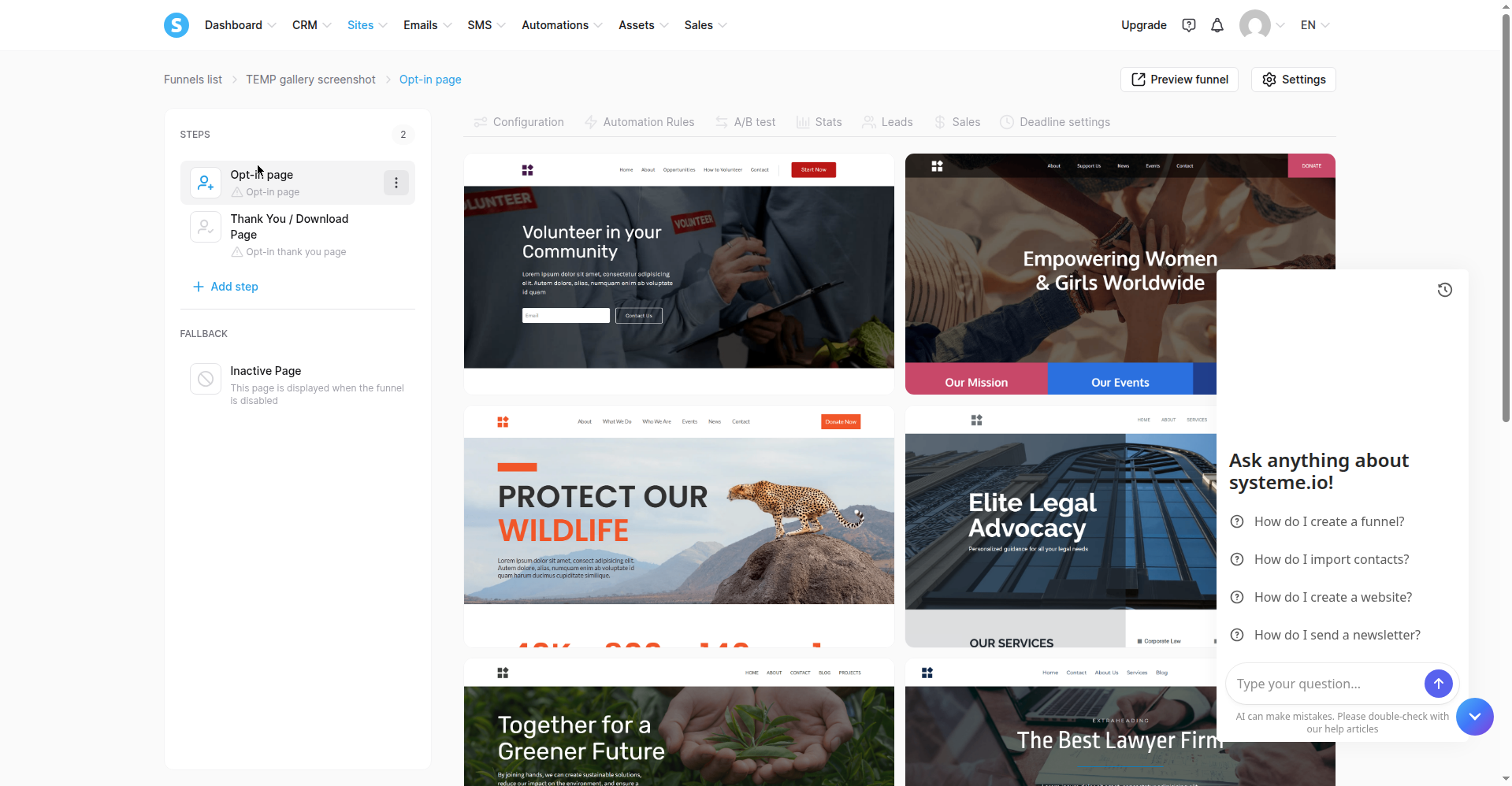
Screenshot: the template gallery in the systeme.io funnel editor, October 2026.
Step 2 — Strip the template junk, then edit
The Elite Legal Advocacy template arrived with lawyer-specific copy, stock imagery, and sections I'd never use. I removed the irrelevant sections and rewrote everything else. The hero-image decision was a judgment call, not a test: I kept a photo of hands holding leaves rather than the checklist cover image — the cover already sits beside the "What's inside" section further down, and a human face in the hero felt more inviting than a product shot. If you have traffic to spare, that's a real A/B test worth running later.
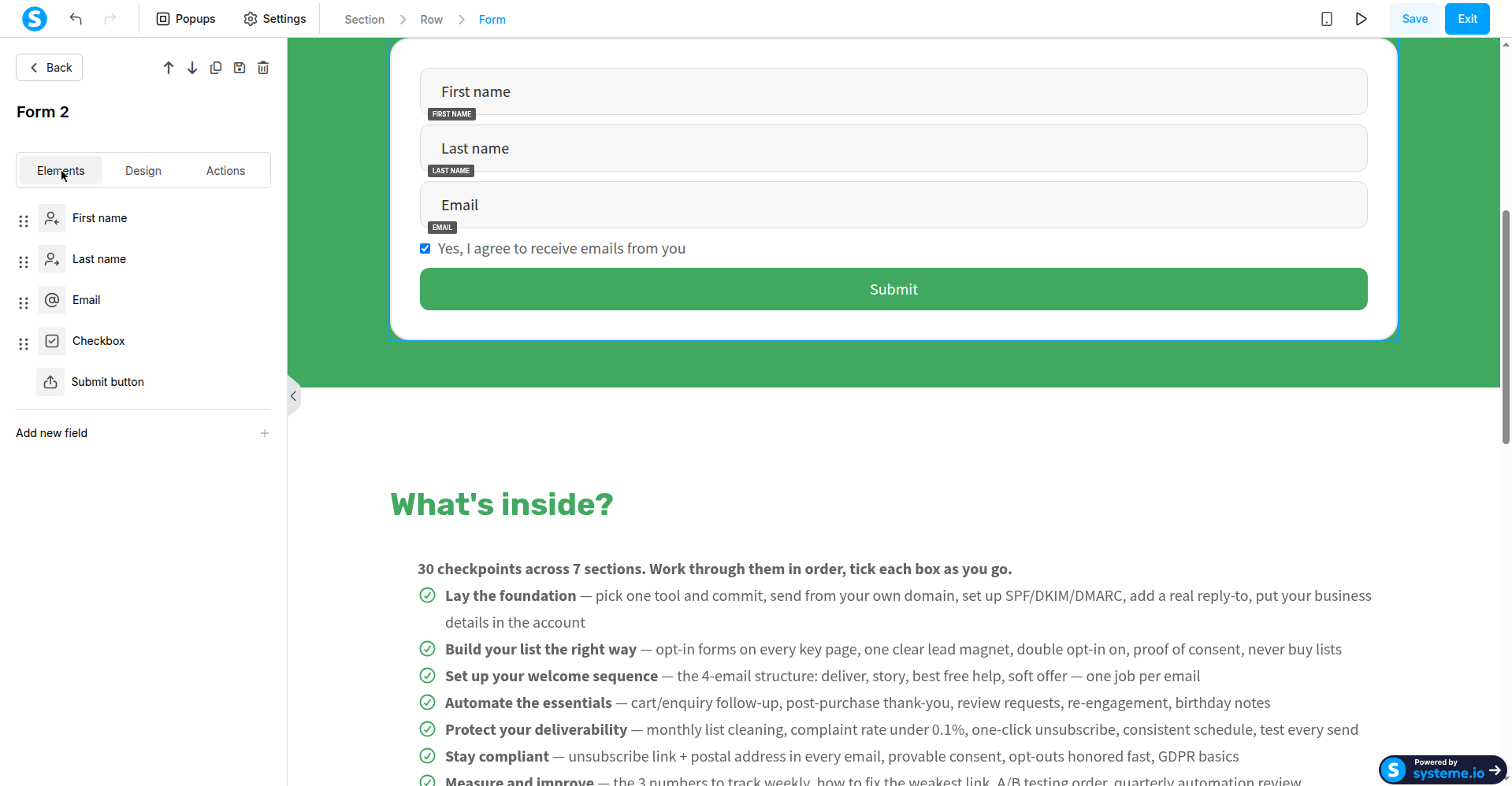
Screenshot: the drag-and-drop editor with the form's Elements tab open, October 2026.
Practical notes from the editing session: the editor is drag-and-drop, blocks snap into rows, and text edits are inline. Before you publish anything, check the mobile preview — layouts that look fine on desktop can stack badly on a phone, and most of your visitors will be on one. The Mobile view toggle sits in the editor's top toolbar.
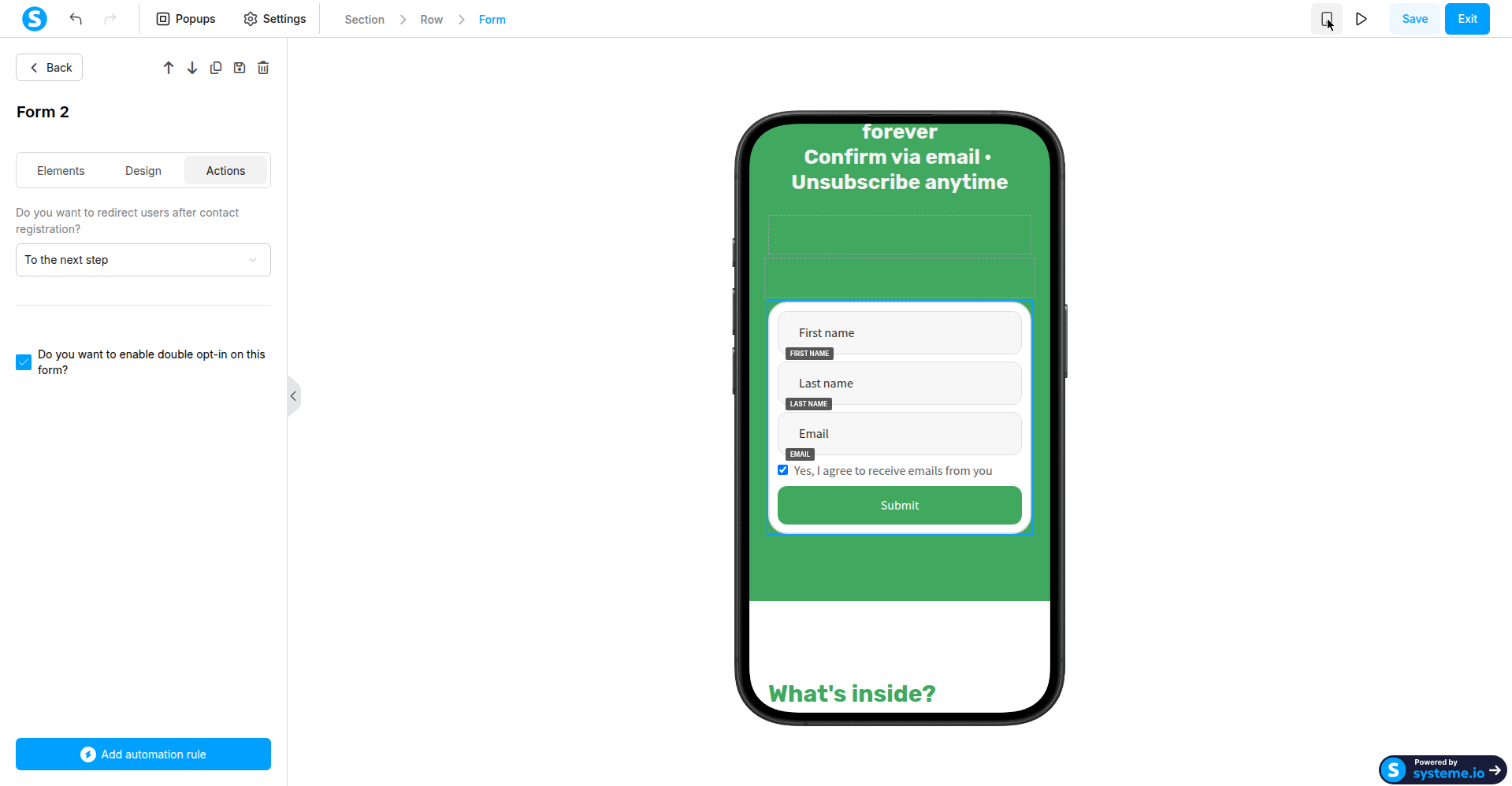
Screenshot: the Mobile view preview in the editor, October 2026.
Also worth knowing: the funnel editor has an A/B test tab at funnel level (Configuration | Automation Rules | A/B test | Stats | Leads | Sales | Deadline settings) — I didn't need it for launch, but it's there when you want to test headline or button variants against each other rather than guessing.
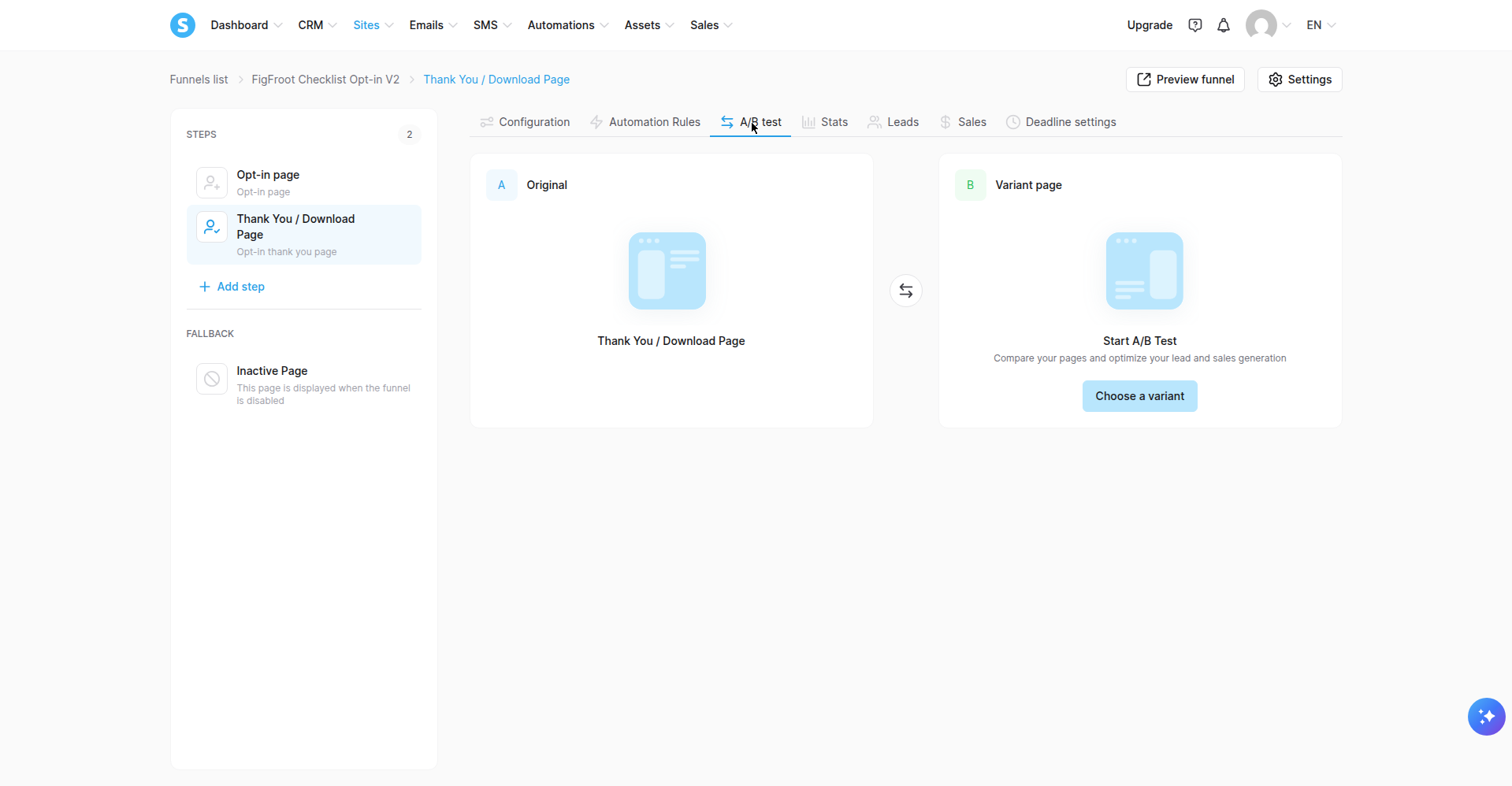
Screenshot: the A/B test tab in the funnel editor, October 2026.
Step 3 — Wire the form: double opt-in + consent checkbox (per form!)
This is the compliance heart of the page, and systeme.io makes it easy to get wrong: double opt-in is a per-form setting — there is no account-wide toggle. Open your form's settings (the Actions tab in the editor sidebar — Elements / Design / Actions) and check the double-opt-in box on every form on the page. I had two forms (hero and final CTA); both needed it individually. Miss one and that form collects single opt-in addresses.
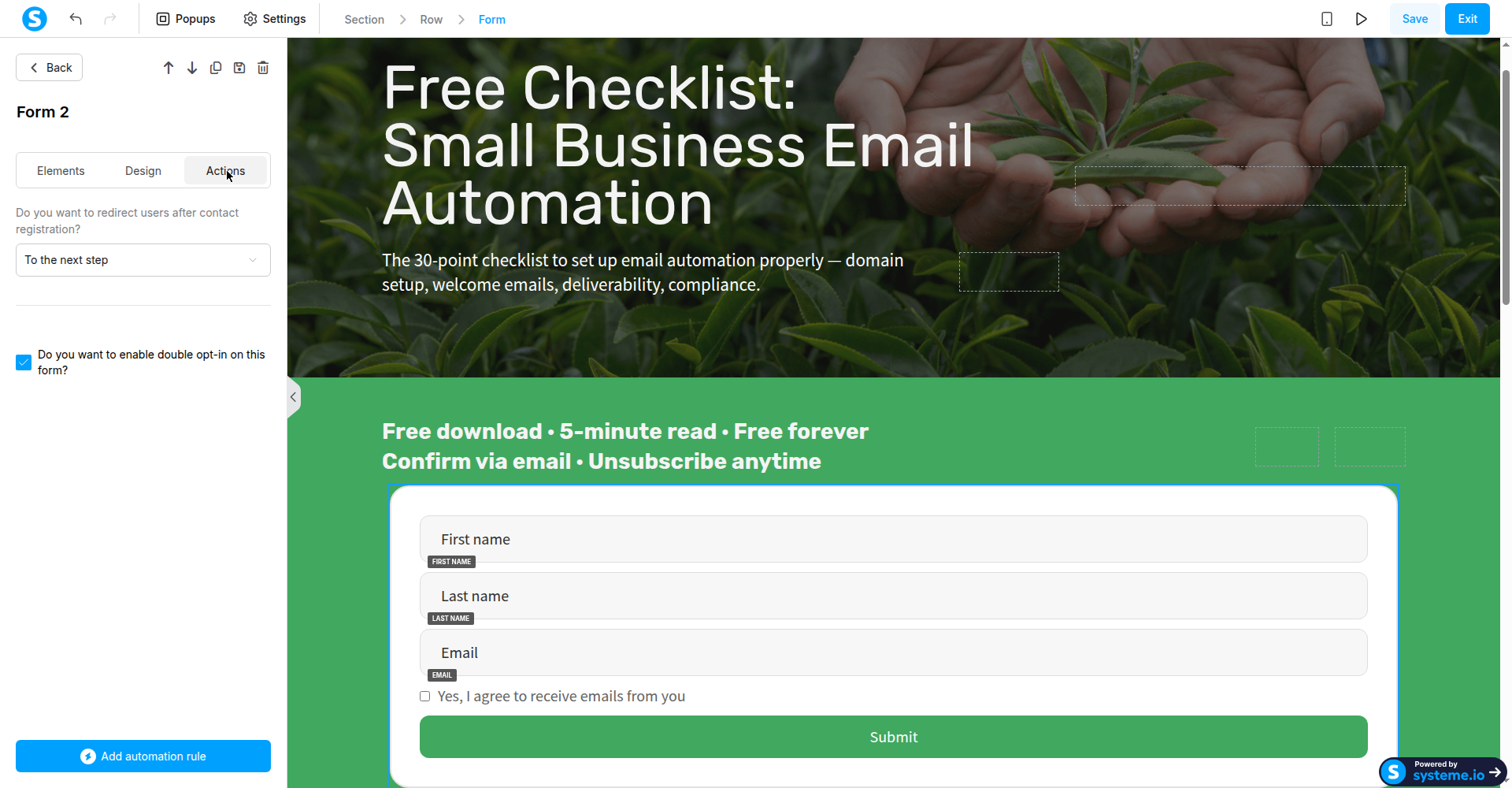
Screenshot: the form's Actions tab — double opt-in checked, redirect set to the next step.
Add a consent checkbox to the form and make it required. I proved the enforcement with a negative test: submitting with the box unticked is blocked, and no contact is created. One cosmetic catch: systeme.io ships a placeholder validation message — "Message if box remains unticked" — as the default text. Change it to real wording, e.g. "Please tick this box to confirm you'd like to receive our emails." Shipping the placeholder looks broken to visitors.
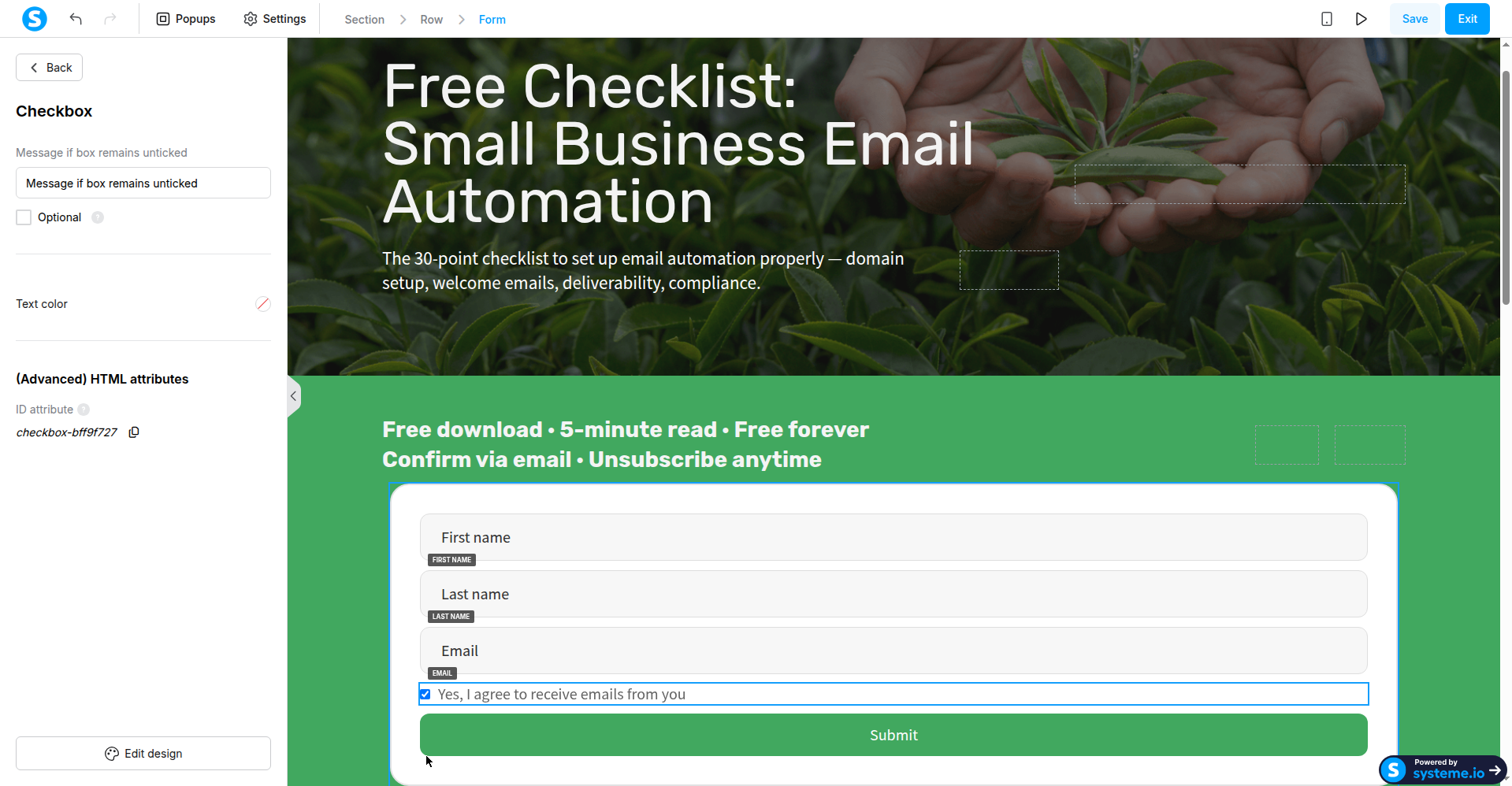
Screenshot: the consent checkbox settings in the editor, October 2026 — the validation message is still the default placeholder.
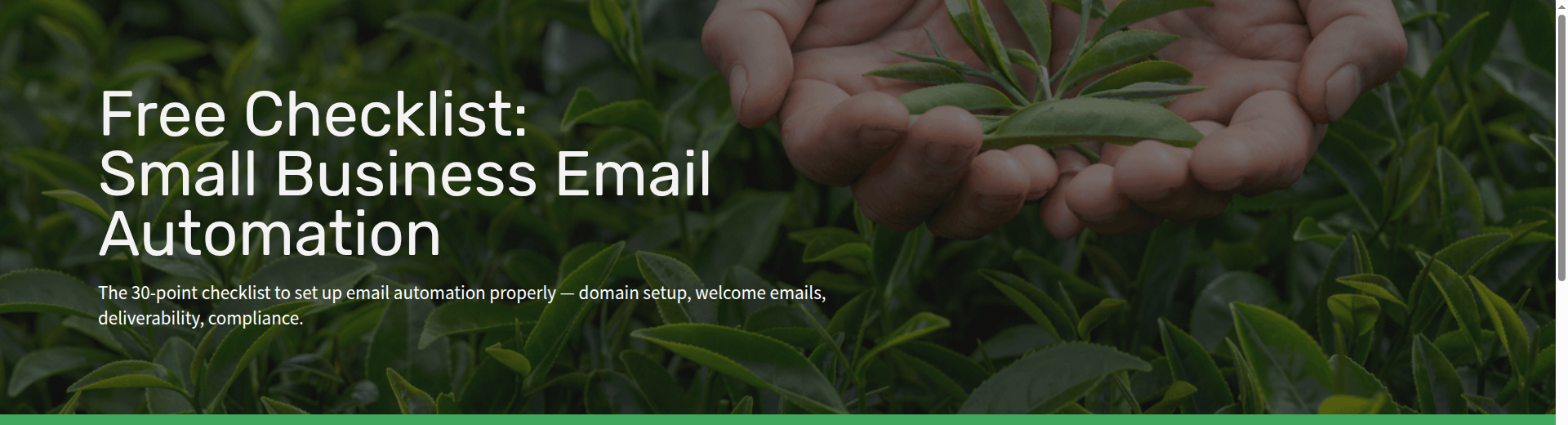
Screenshot: the live hero form from the October build — this is what the finished wiring looks like.
Step 4 — Set the redirect: thank-you page, not an automation email
This is where the tutorials diverge from what works. In the form's settings, set the post-submit behavior to redirect "To the next step" — your thank-you page — instead of relying on an automation rule to email the freebie.
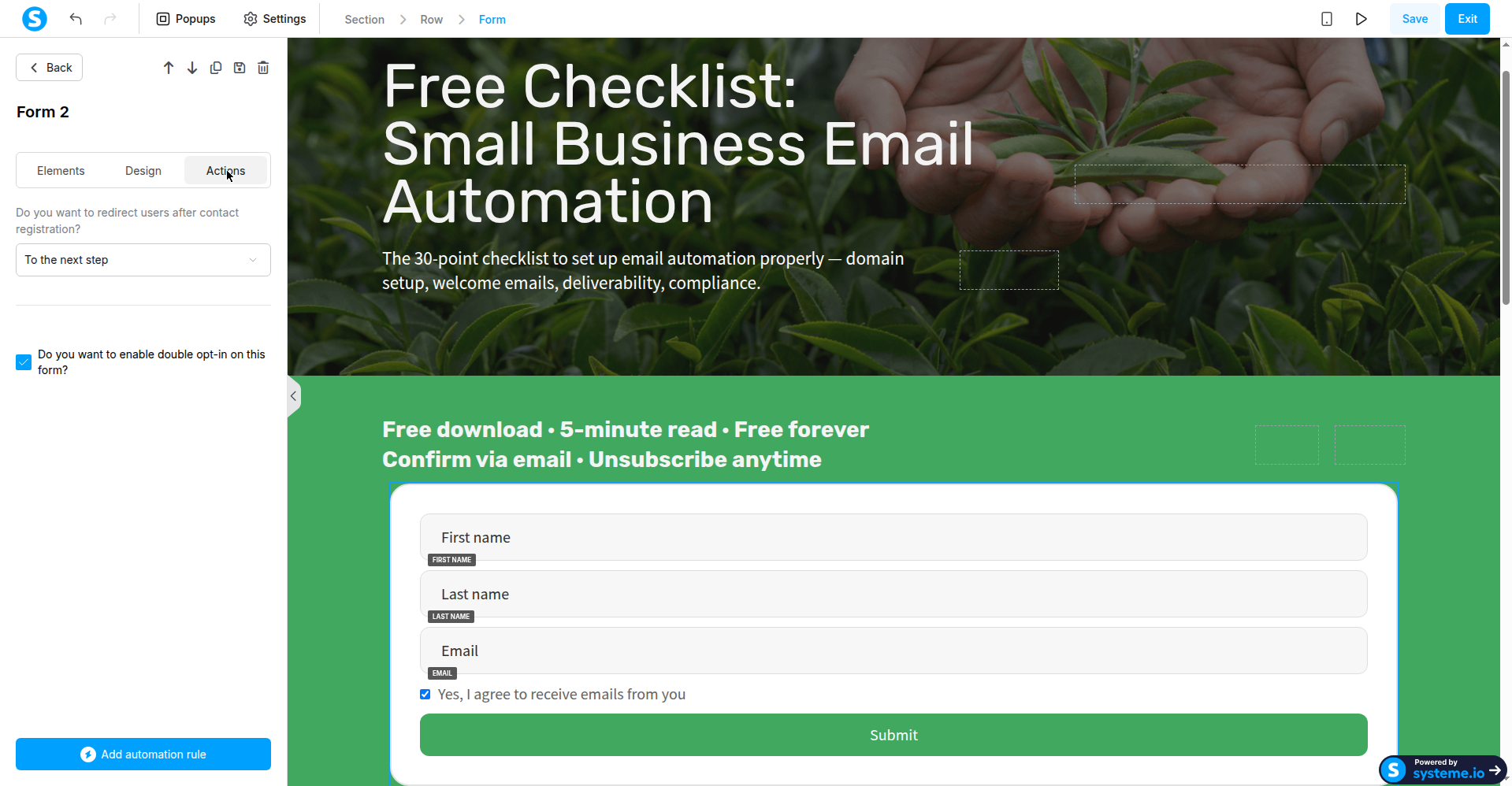
Screenshot: the form's Actions tab with the redirect setting and double opt-in, October 2026.
On the thank-you page, put the delivery front and center: a prominent download button linking straight to your file (upload it under Assets > Files and copy the link), with a short note below reminding the visitor to check their inbox and click the confirmation link to complete their subscription. The confirmation email arrives separately — it's the double opt-in mechanism, not the delivery mechanism.
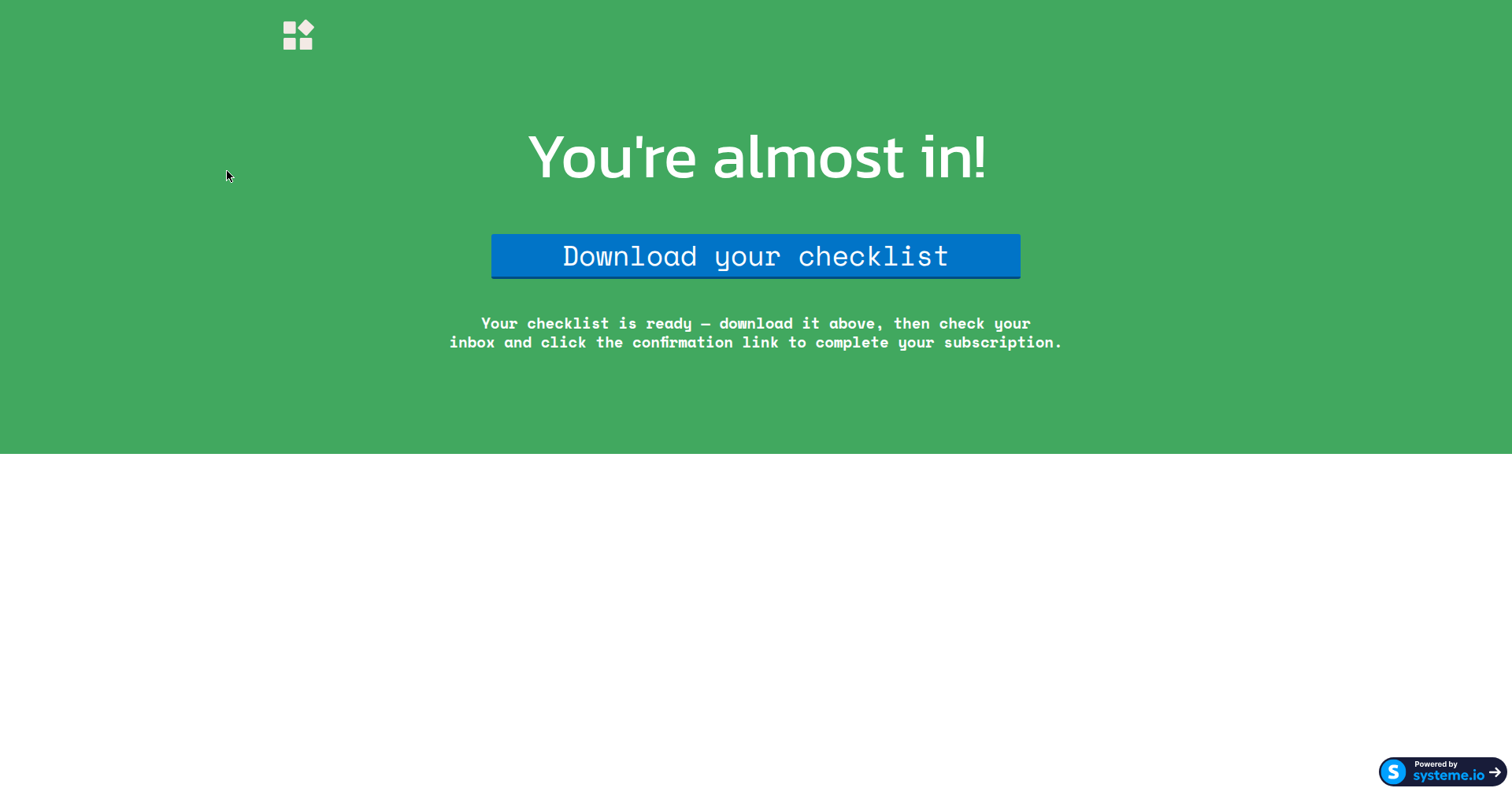
Screenshot: the live thank-you page from the October build — the checklist is one click away, no email delivery involved.
Step 5 — Pressure-test the loop yourself
Before you send a single visitor: submit the form with your own test address and check every link in the chain.
1. Submit → you should land on the thank-you page (not stay on the form, not hit an error).
2. Click the download button → your file should open (check it loads, all pages, correct title).
3. Check your inbox → the confirmation email ("Important: confirm your subscription") should arrive within a minute or two.
4. Click the confirmation link → you should see "Registration confirmed."
5. Try submitting with the consent box unticked → it must block you.
I ran this full loop on the final setup three times cleanly in October 2026 — every step green, including the negative consent test. If any step fails, fix it before launch; a broken chain silently costs you every subscriber it touches.
Evidence — what happened when I ran it
- Oct 3, 2 signups — Automation rule: form subscribed → send email directly. Confirmed, zero delivery emails (waited 25–35 min).
- Oct 4 — Automation rule: form subscribed → subscribe to campaign (the pattern the Medium Feb 2026 tutorial recommends). Confirmed, campaign showed 0 contacts, 0 emails.
- Overnight check — Same designs, ~12 hours later. Still nothing delivered.
- Oct 4 (final flow) — Form → redirect to thank-you page → download button → confirmation email. Pass: redirect, download, PDF loads, confirmation email arrives, "Registration confirmed."
- Oct 4 (negative test) — Submit with consent checkbox unticked. Blocked — no contact created.
The rule is now paused in the account; the thank-you-page button is the delivery mechanism.
Free-plan limits I actually hit: the free plan allows exactly one automation rule — attempting a second returns "You have exceeded the limits of your plan." Don't burn your single rule on the broken email-delivery pattern. (Plan details verified October 2026; the free tier also advertises 2,000 contacts and unlimited email sends.)
A note on the competing tutorial: the Feb 2026 Medium guide's Step 11 isn't sloppy — it's the officially documented pattern, and systeme.io's own help center implies paused automations resume after confirmation. The problem is that, in our October 2026 tests on the free plan, they don't resume: rule history empty, campaign at zero. I'm stating this as what my tests showed, not as a universal rule — if systeme.io changes the behavior or it differs on paid plans, I'll update this guide. If you follow that tutorial's Step 11 as written, verify delivery with a test signup before you trust it.
Trade-offs — the honest limitations
1. The "connect automation" step in the popular tutorials doesn't deliver under double opt-in (free plan, tested October 2026). Deliver the freebie on the thank-you page instead — it's one click for the subscriber and it cannot silently fail.
2. Template junk is real work. The Elite Legal Advocacy template needed nearly all its copy stripped and rewritten; budget the editing time, not just the building time.
3. The default consent validation message is a placeholder. "Message if box remains unticked" ships as-is if you don't change it — a small detail that makes your page look unfinished.
4. One automation rule on the free plan. You get a single rule; design around it and don't waste it on patterns that don't fire.
5. Free-plan branding. systeme.io adds its "Powered by" badge to your pages and emails; removing it requires a paid plan.
6. Confirmation links are single-use with no resend button — covered in the automation guide, but it affects your page too: a subscriber who loses the email must sign up again.
Fit check
Build it in systeme.io if: you want a simple, compliant opt-in page on the free plan, you're happy delivering the freebie via the thank-you page, and double opt-in list hygiene matters to you.
Pick something else if: you need the freebie to arrive *by email* after confirmation (look at systeme.io Workflows on a paid plan, or an ESP like Kit or MailerLite whose post-confirmation triggers behave as documented), or you need checkout/upsell machinery (that's a sales funnel build, not this one).
Next action
Affiliate disclosure: FigFroot earns a commission if you sign up through the link below, at no extra cost to you. It's how we fund the hands-on testing behind guides like this.
Create your free systeme.io account and walk through Steps 1–5 above with your own freebie — page, form, delivery, tested in an afternoon: Try systeme.io free
Plan details verified October 2026. Screenshots are original, taken in a real systeme.io account during testing.