How to Organize Your Email List with Tags in systeme.io (Tested End to End)
You want to organize your subscribers: buyers separate from freebie-downloaders, engaged readers separate from cold ones. In Mailchimp you'd make lists. In systeme.io, you open the menu and discover there is no Lists menu at all. There is one contact database, and there are tags.
I tested the tag system end to end in a real systeme.io account in October 2026 — creating a tag, assigning it, filtering by it, targeting a newsletter with it — and screenshotted every step. Along the way I hit a wall most tutorials never mention: on the free plan, you get exactly one tag. Try to create a second and systeme.io stops you with a red error. This guide shows you what tags can actually do on the free plan, what the 1-tag limit blocks, and how to organize anyway.
Who this is for
- You have (or will create) a free systeme.io account and want to organize contacts this week.
- You're coming from Mailchimp, MailerLite, or Kit and keep looking for the "Lists" screen — this guide re-maps your mental model.
- You want to send different emails to different groups (a newsletter to everyone, an offer to buyers only).
Who should skip this
- You need five or more audience segments right now — the free plan won't get you there; read the limit section first, then decide whether to upgrade.
- You want multi-tag automation choreography (tag in → sequence A, tag out → sequence B across many tags) — that's paid-plan territory and I couldn't test it on free.
- You're on another ESP — every click here is systeme.io-specific.
The problem
systeme.io doesn't think in lists. There is no Lists menu under CRM — just Contacts and Tags. Your "list" for any given send is a *selection of tags*: systeme.io's own newsletter documentation says you need "an email list that contains at least one tag." In other words, tags *are* the organizing unit. A contact can carry tags like `buyers`, `webinar-attendees`, or `cold-leads`, and you build each audience by choosing which tags to include or exclude.
That's the easy part. The hard part is what the tutorials skip: the free plan allows exactly one tag. I don't mean one tag per contact — I mean one tag in the entire account. Most guides describe tag-based organization as if you can create as many tags as you like. On free, you can't. This guide is built around that reality: what one tag can do, where it stops, and when it's time to pay.
A note on existing coverage: thecalvinlim.com (October 2025) already covers the tags-vs-lists mental model well in concept — I'm not the first to explain it. What nobody else does is test the system on the free plan with screenshots and tell you where the walls are. That's this guide.
The tested setup
Step 1 — Find where tags live (CRM > Tags)
Go to CRM > Tags. On a fresh account, you'll see an empty state: "It looks like this list is empty" with a Tags counter at 0. No Lists menu anywhere — this screen is the entire organizing system.
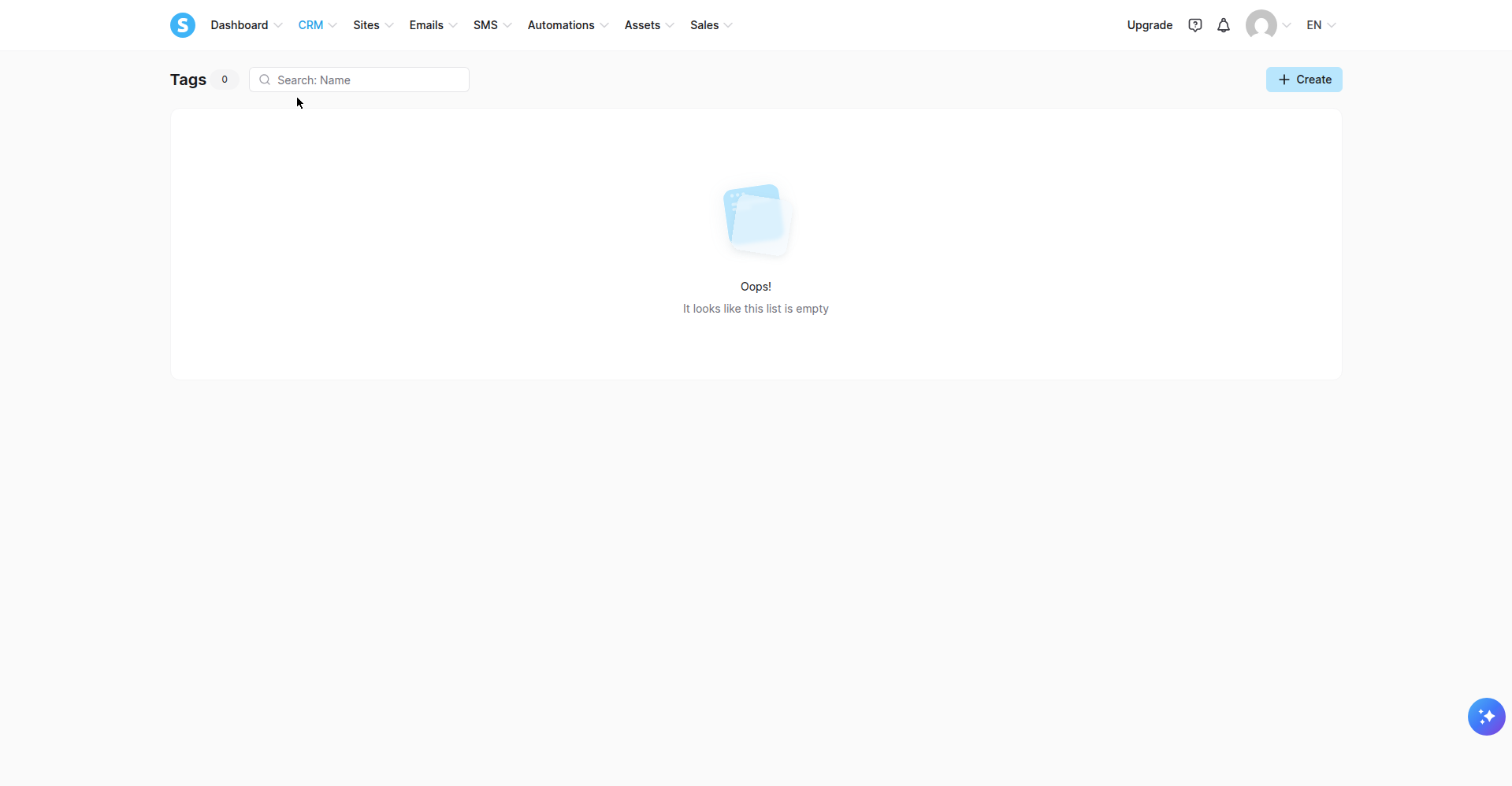
Screenshot: the Tags section before creating anything, October 2026.
Step 2 — Create your tag (choose the name carefully)
Click + Create. In the Create tag dialog, enter a Tag name and click Create. I created a test tag for this walkthrough (yours should be a real segment name like `newsletter` or `buyers`).
Choose the name carefully: on the free plan this is the *only* tag you'll have, so it should name your single most important segment. You can rename it later, but you can't add a second one.
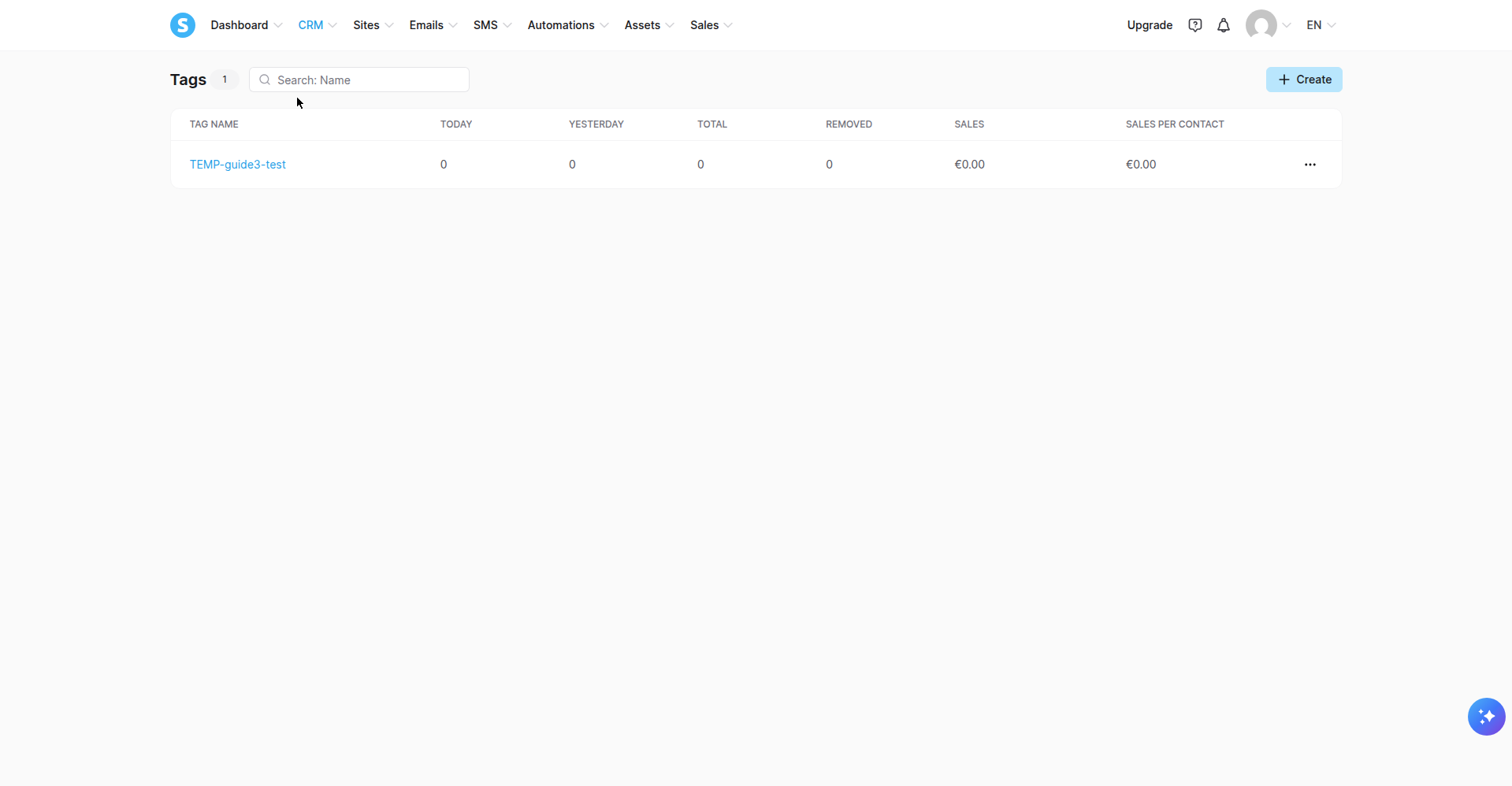
Screenshot: after creating the first tag — note the Tags counter now reads 1, October 2026.
Step 3 — Hit the wall: the 1-tag limit (the centerpiece)
Now try to create a second tag. Click + Create again, enter a name, click Create — and systeme.io answers with a red error under the field: "Your plan does not allow you to create more tags." The tag is not created. The counter stays at 1.
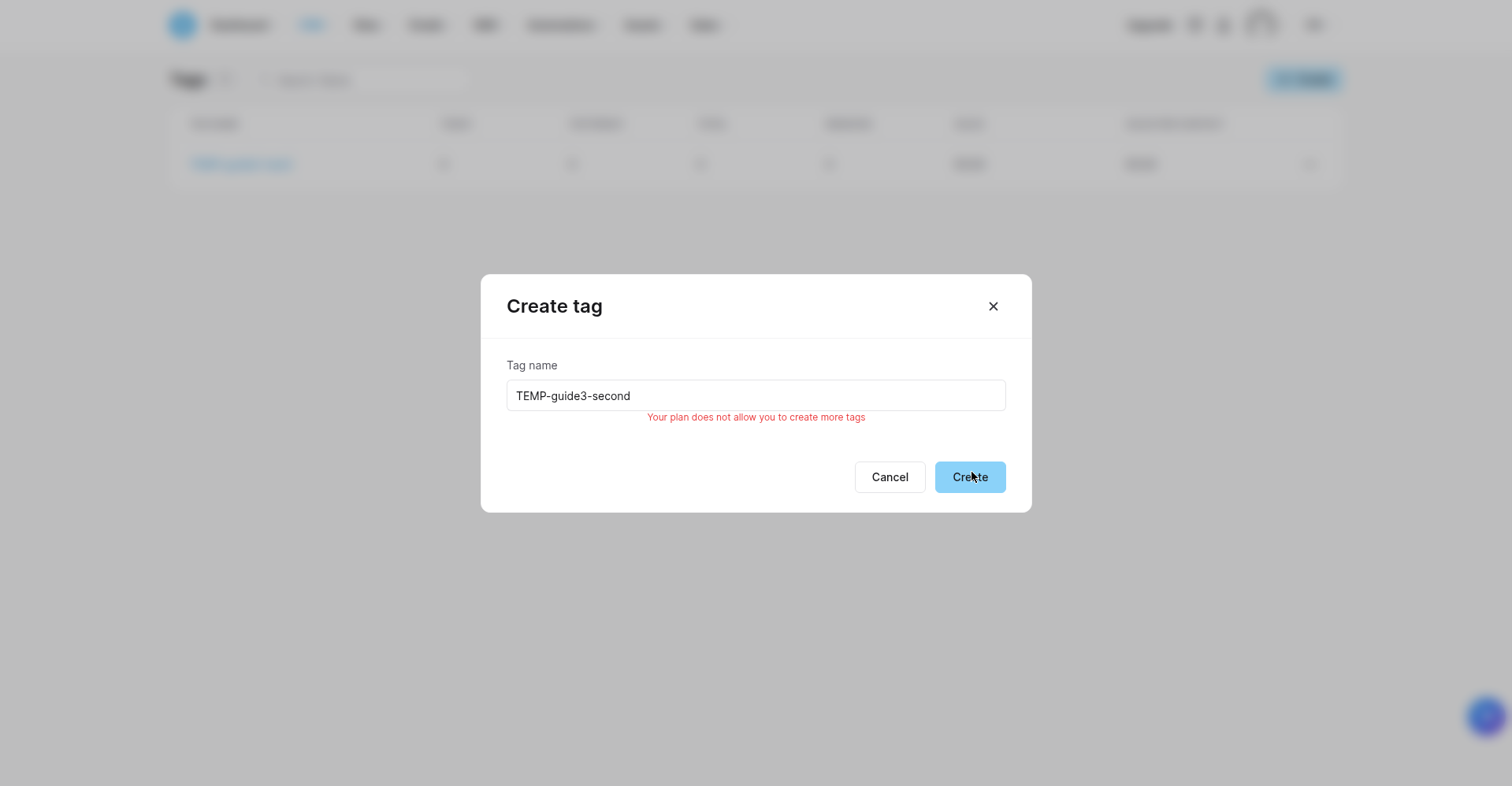
Screenshot: the 1-tag limit, confirmed live in our account, October 2026. This is the free plan's hard ceiling.
This is the single most important fact about tags on the free plan, and it's the thing the tutorials don't tell you. What it blocks:
- Multi-segment organization. You can't have `buyers` *and* `leads` *and* `webinar-attendees`. One tag = one segment.
- Tag-based automation chains. With one tag and one automation rule (also the free limit), you get exactly one "tag added → do something" scenario.
- Naming systems. Tag naming discipline only matters when you have many tags — on free, the question is moot.
How to organize anyway: make your one tag count. Tag the segment you email most differently from everyone else — typically buyers (people who paid you) versus everyone else (your whole contact base). Everything else is "untagged," which is itself a usable segment: filter for contacts *without* the tag.
When to upgrade: systeme.io's paid tiers raise the cap. As of October 2026, systeme.io's own pricing page lists 1 tag on Free, 10 on Startup ($17/mo), 100 on Webinar ($47/mo), and unlimited on Unlimited ($97/mo) — I read these off the live comparison table on launch day. If you need buyers/leads/customers as separate tags, that's the upgrade decision; confirm the numbers on systeme.io's pricing page before you pay, since limits can change.
Step 4 — Assign the tag manually (not where you'd expect)
Open a contact's page and find the Tags panel. Click + Add tag, then pick your tag from the Select tags combobox. The tag appears as a chip on the contact.
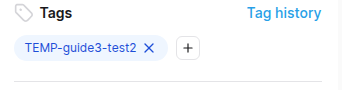
Screenshot: manual tag assignment on a contact, October 2026.
The gotcha: you'd expect tag assignment under the contact's Actions menu — it isn't there. I checked: the Actions menu has no Add tag option. Assignment happens only through the Tags panel (or automatically via automation rules, per systeme.io's help docs — I did not test automatic assignment on the free plan, so I won't describe its behavior as tested).
Step 5 — Filter contacts by tag
Back on the Contacts list, click Filter > Add condition > Tag (under SYSTEM FIELDS) > operator Tagged with > Choose tag, then pick your tag. The list narrows to tagged contacts, with a Filter badge showing the active condition and the tag visible in the TAGS column.
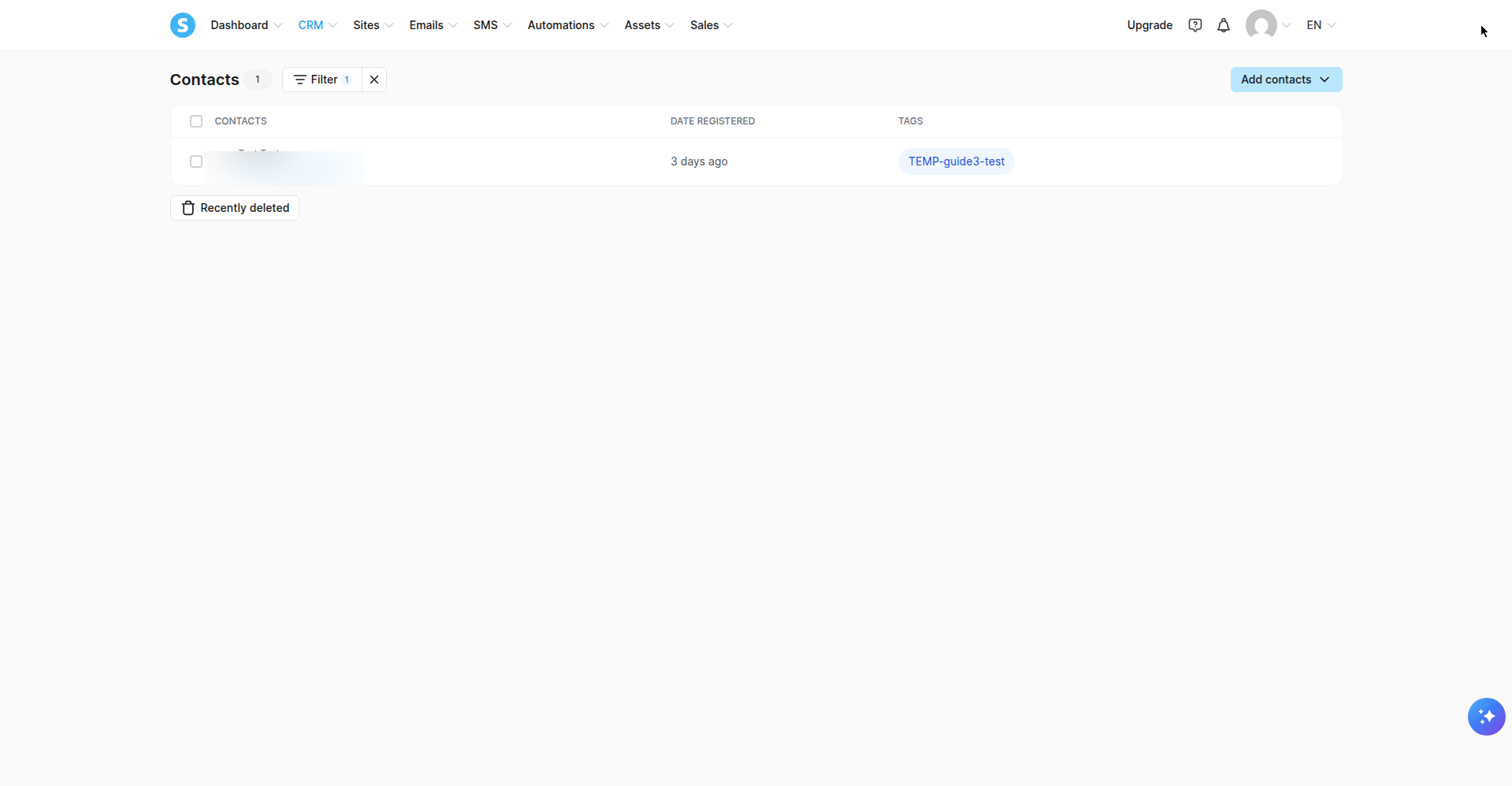
Screenshot: filtering the contact list by tag, October 2026. (Test contact details redacted.)
This is your "list" for all practical purposes: a filtered view you can act on. Remember the free-plan math — with one tag, you get two usable audiences: tagged and untagged.
Step 6 — Target a newsletter by tag
Create a newsletter and open the Recipients panel. You'll see Include these tags \* (required) and Exclude these tags, each with Select all / Unselect all. Two dedup notes are printed right in the UI and worth knowing:
- Contacts with a tag in the Include list receive the newsletter unless they also carry a tag in the Exclude list.
- A contact with several included tags still receives one email — no duplicates.
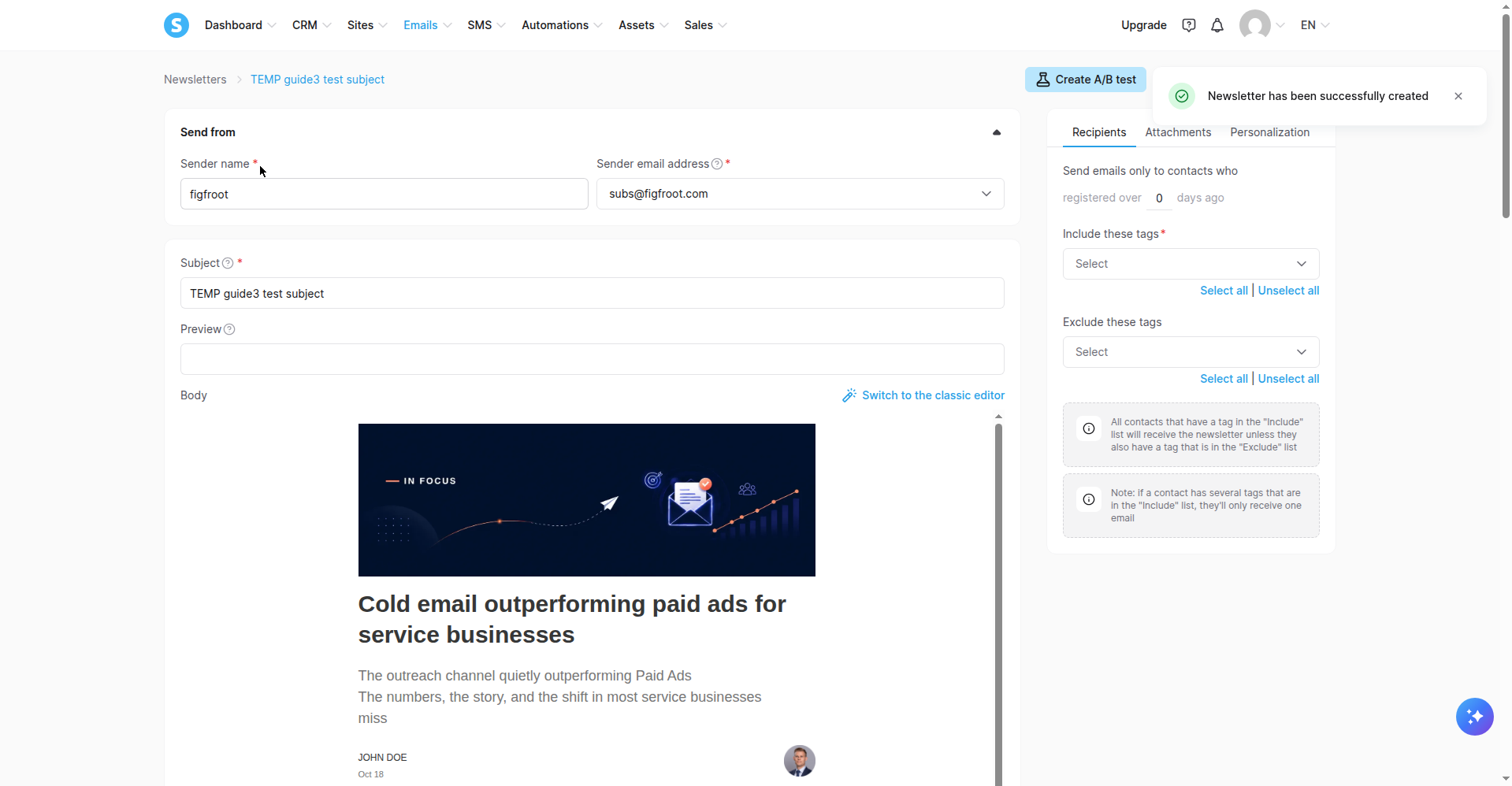
Screenshot: newsletter recipient targeting, October 2026. (Draft newsletter shown; nothing was sent.)
This is where the "email list that contains at least one tag" phrasing from systeme.io's docs becomes concrete: every send is a tag selection. On the free plan, your newsletter audience is "everyone with my one tag" or "everyone" — plan your tag around your most important send.
Step 7 — Know the automation gotcha before you tag anyone
Open Automations and start a rule to see the Add trigger dialog. Under CONTACT you'll find Tag added ("Occurs when a tag has been added to a contact") and Tag removed. Tags aren't just labels — they're automation triggers.
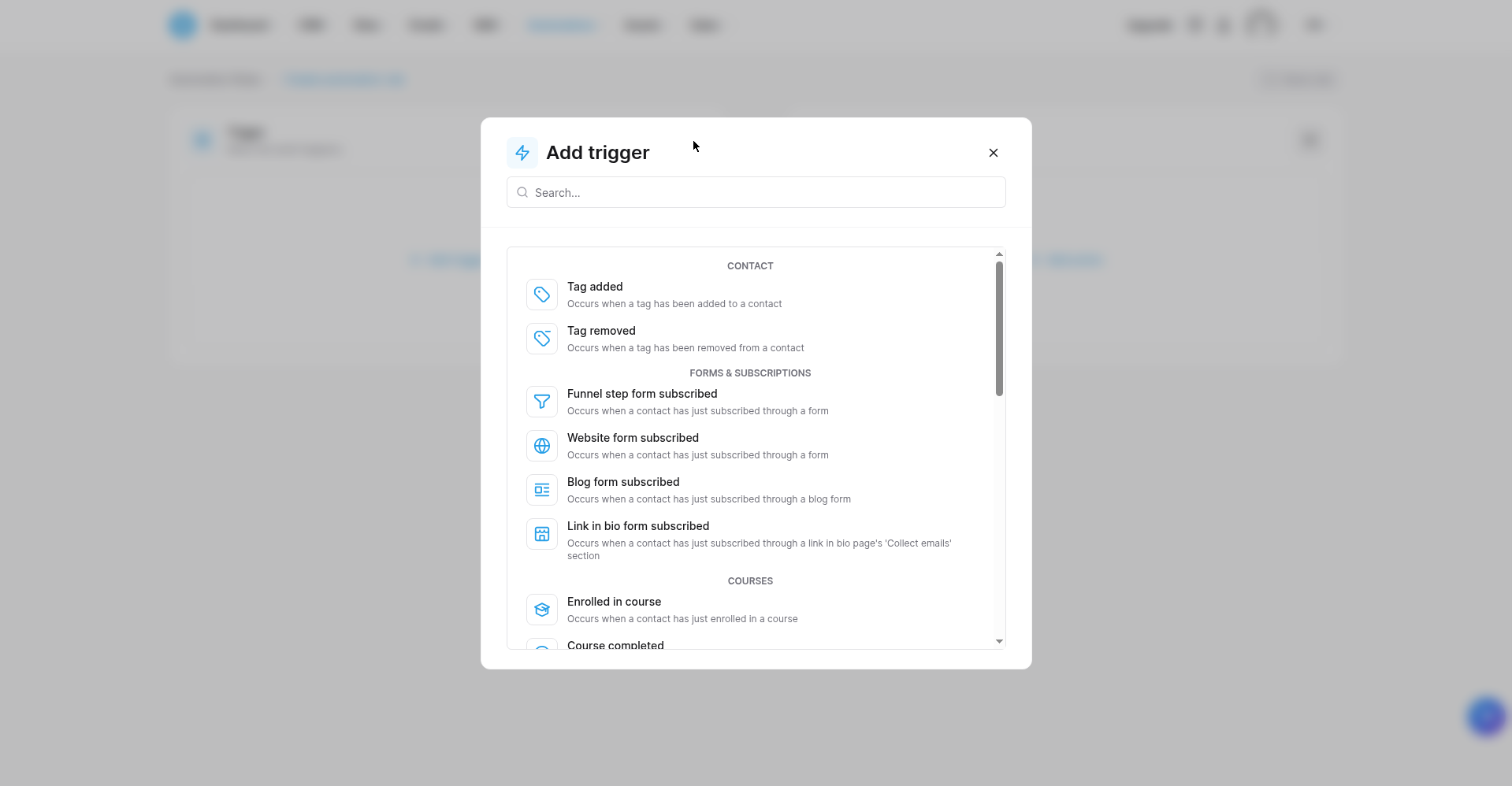
Screenshot: tag triggers in the automation rule builder, October 2026.
systeme.io's own help documentation (article 348, "How to automatically and manually add tags to your contacts") warns about this explicitly: if a rule triggers on tag assignment, *each* tag addition can fire one or more actions — subscribing to a campaign, sending an email — and it advises checking existing rules before adding or modifying tags. On the free plan this bites harder: you have exactly one automation rule, so an accidental tag assignment could fire the single most important automation in your account. Check your rule before you tag.
I did not test a tag-triggered rule firing end to end on the free plan (one rule was already committed in the account), so treat the firing behavior as documented-by-systeme.io, observed-in-the-UI — not as my tested result.
Step 8 — Cleaning up (what I did after testing)
I deleted the test tag after capturing everything: the Tags section returned to 0 with a "The Tag has been removed" confirmation. If you test along, clean up the same way — a stray test tag on a 1-tag plan blocks your real tag.
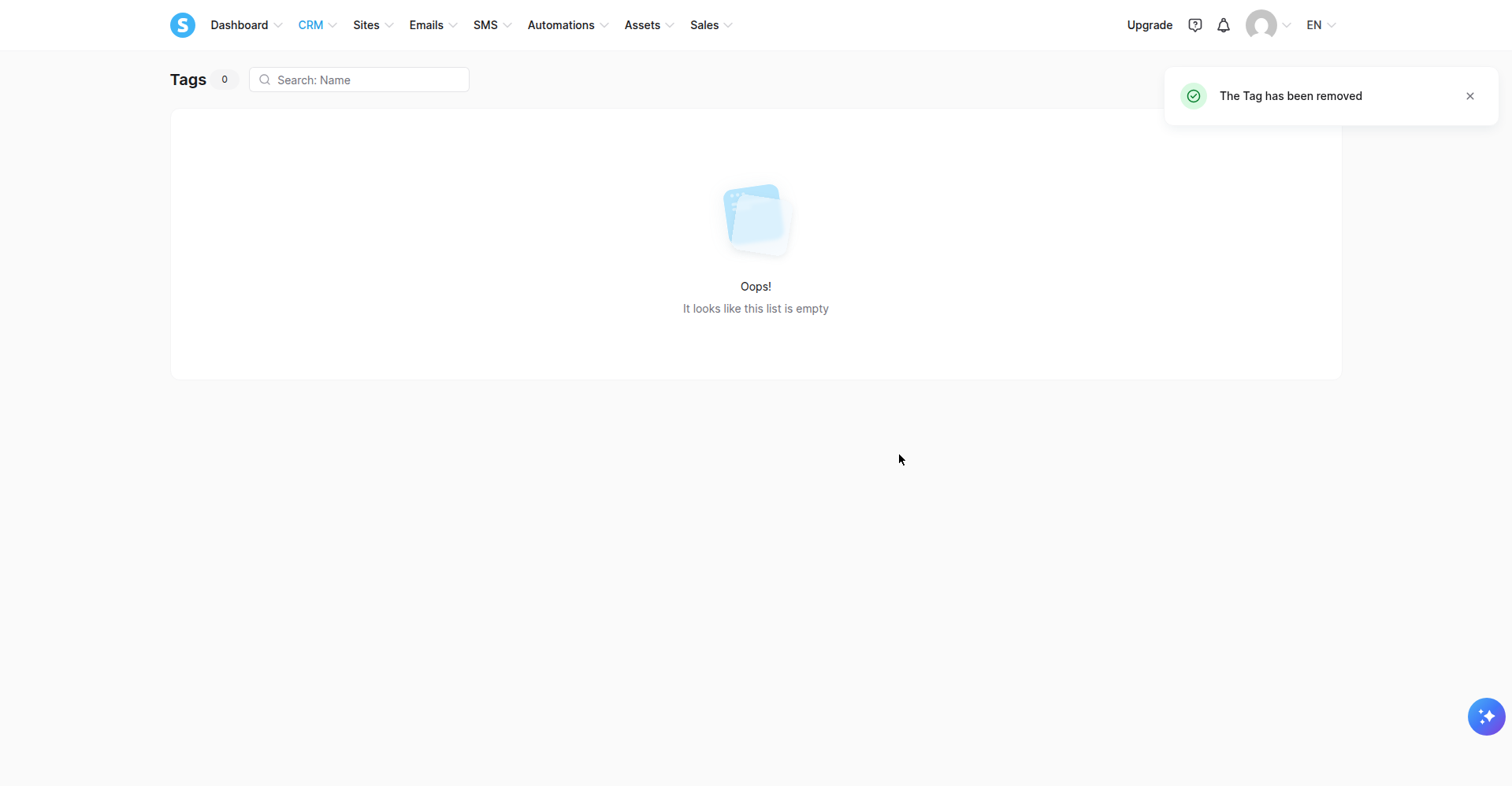
Screenshot: account left clean after testing, October 2026.
Evidence — what happened when I ran it
- Oct 4, free plan — Create first tag (CRM > Tags > + Create). Pass: tag created, counter 0 → 1.
- Oct 4 — Create second tag. Blocked: red error "Your plan does not allow you to create more tags." Counter stayed at 1. The 1-tag limit is real and enforced in the UI, not just documented.
- Oct 4 — Assign tag manually (contact Tags panel > + Add tag). Pass: chip appeared on the contact.
- Oct 4 — Look for Add tag in the contact Actions menu. Not there: assignment is Tags-panel-only (a genuine UI gotcha).
- Oct 4 — Filter contacts (Tag > Tagged with > Choose tag). Pass: list narrowed, Filter badge + TAGS column shown.
- Oct 4 — Newsletter recipient targeting UI. Observed: Include/Exclude selectors + dedup notes; no newsletter was sent in testing.
- Oct 4 — Tag triggers in the Add trigger dialog. Observed: "Tag added"/"Tag removed" under CONTACT; firing behavior per systeme.io's help docs, not my tested result.
- Oct 4 — Automatic tag assignment via rule. Not tested: one automation rule already committed in the account; described from official docs only.
- Oct 4 — Cleanup (delete test tag). Pass: "The Tag has been removed," Tags back to 0.
Free-plan limits confirmed live: exactly 1 tag ("Your plan does not allow you to create more tags" on the second attempt), corroborated by four independent sources 2026-10-04 including one citing systeme.io's official pricing comparison table (July 2026).
If list organization is your whole game, the automation side is covered step by step in How to Set Up Email Automation in systeme.io (Tested End to End), the page that captures the subscribers is built in How to Build a Landing Page in systeme.io (Tested End to End), and double opt-in mechanics are isolated in How to Turn On Double Opt-In in systeme.io.
Trade-offs — the honest limitations
1. One tag on the free plan is a hard ceiling. You cannot build multi-segment tag systems, tag-based onboarding chains, or buyer/lead/customer splits without upgrading. Every tag tutorial that assumes unlimited tags is describing a paid-plan reality.
2. Manual assignment hides in the Tags panel, not the Actions menu. I checked the contact Actions menu — no Add tag. If you're hunting for it, you're looking in the wrong place; the official docs describe the Tags-panel path.
3. Assigning a tag can fire automations — systeme.io's own docs warn that each tag addition can trigger rule actions. With exactly one automation rule on the free plan, a careless tag assignment can set off your single most important automation.
4. No Lists menu means relearning. If you're coming from Mailchimp-style lists, the mental shift is real: one contact database, audiences built per-send from tag selections. thecalvinlim.com's October 2025 guide covers this conceptually — read it for the theory; come back here for what's actually tested.
5. Untested on my side: automatic assignment and trigger firing. I observed the UI and cite systeme.io's docs, but I did not run a tag-triggered rule end to end. Don't treat those sections as tested results.
Fit check
Use systeme.io tags on the free plan if: you have one main segment to separate (buyers vs. everyone is the classic), you're happy treating "untagged" as your second audience, and your automation needs fit in a single rule.
Upgrade or pick something else if: you need buyers, leads, and customers as separate tags today (that's the upgrade decision — Startup gives 10 tags for $17/mo as of October 2026); you want tag-in/tag-out automation choreography across many tags; or you need list-style hard boundaries between audiences with separate consent contexts (some ESPs still do lists natively — evaluate them on their own terms, I haven't tested them).
Next action
Affiliate disclosure: FigFroot earns a commission if you sign up through the link below, at no extra cost to you. It's how we fund the hands-on testing behind guides like this.
Create your free systeme.io account, go to CRM > Tags, and create your one tag — name it for the segment you'll email most differently from everyone else. Then walk Steps 4–7 above to assign it, filter by it, and target a send with it: Try systeme.io free
Plan details verified October 2026. Screenshots are original, taken in a real systeme.io account during testing.